
Git Sync #
Introduction to Git Sync #
Git Sync allows project content to be synchronized between a TeXPage project and a Git repository, so users can combine TeXPage’s online LaTeX editing and collaboration features with Git-based version control.
With Git Sync, you can retrieve the latest changes from a Git repository and also commit and push changes made in TeXPage back to the repository. This helps keep project content consistent across TeXPage, local development environments, and Git hosting platforms.
Git Sync is suitable for users and teams that already manage LaTeX projects with Git, as well as those who want to integrate TeXPage into an existing Git workflow.
Getting Changes from Git #
When new commits are available in the Git repository, the latest changes can be synchronized to the TeXPage project.
For example, after a project member modifies files locally and pushes the changes to the Git repository, other members can retrieve those changes in TeXPage and continue editing, compiling, and collaborating online.
Syncing Changes to Git #
After changes are made in TeXPage, the system automatically commits and pushes the project changes to the Git repository.
Once synchronized, these changes become part of the repository’s version history, and other project members can retrieve and continue working with them through their normal Git workflow.
Git and TeXPage Version History #
Git version history and TeXPage project history are two independent version management systems.
When changes from a Git repository are synchronized to a TeXPage project, TeXPage records the resulting project changes and creates a corresponding entry in the project history.
When the content of a TeXPage project changes, TeXPage automatically synchronizes the project data to the Git repository and creates a corresponding Git commit.
As a result, whether changes are made through Git or directly in TeXPage, the relevant changes are preserved in their respective version histories for later review and tracking.
How to Use Git Sync #
Create a Git Sync Token #
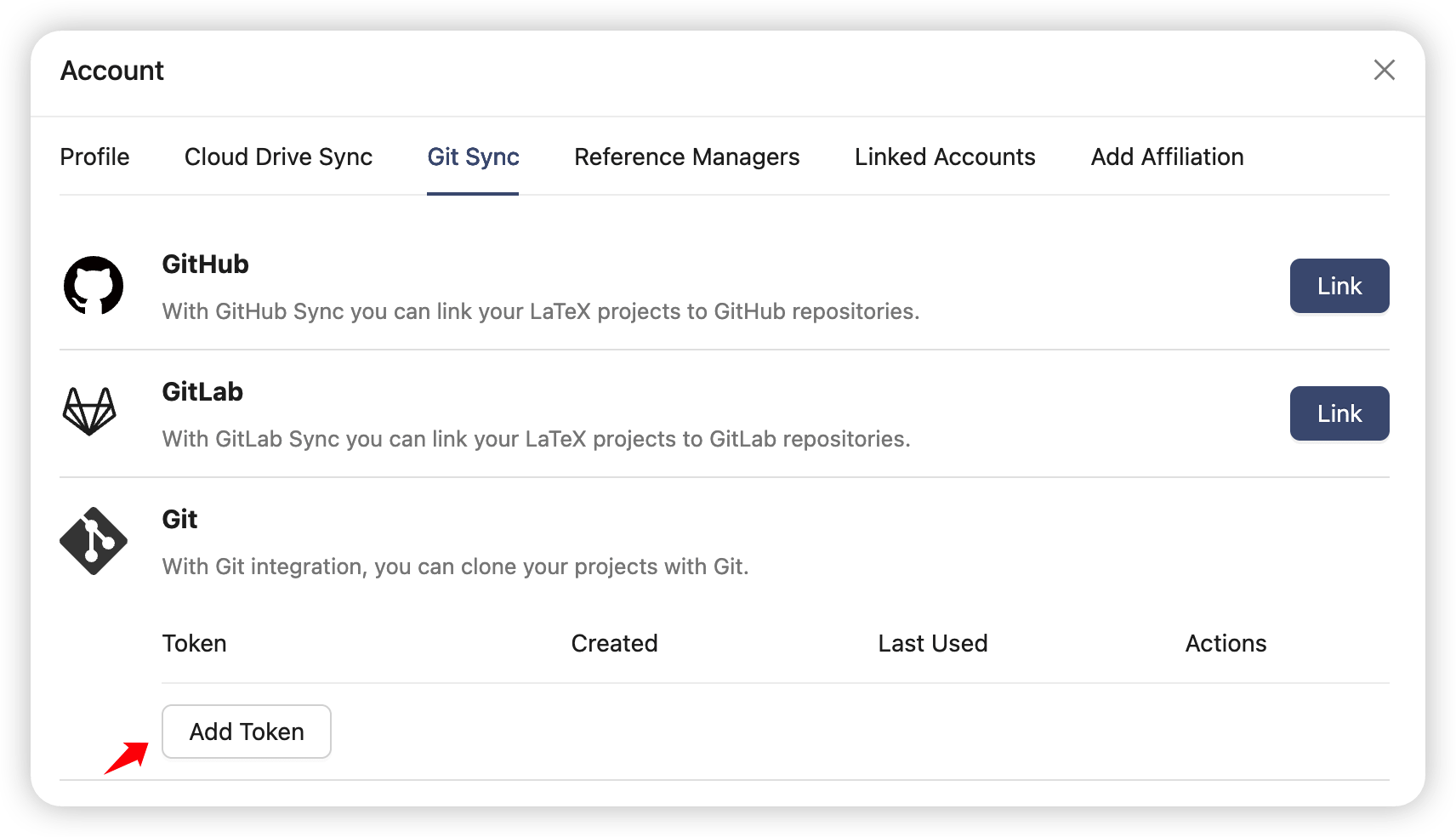
Git Sync uses a separate access token for authentication and does not use your TeXPage account password directly.
Go to My Account and create a token in the Git Sync settings.
Once created, this token will be used as the password for subsequent Git operations. Please keep it secure.
Enable Git Sync #
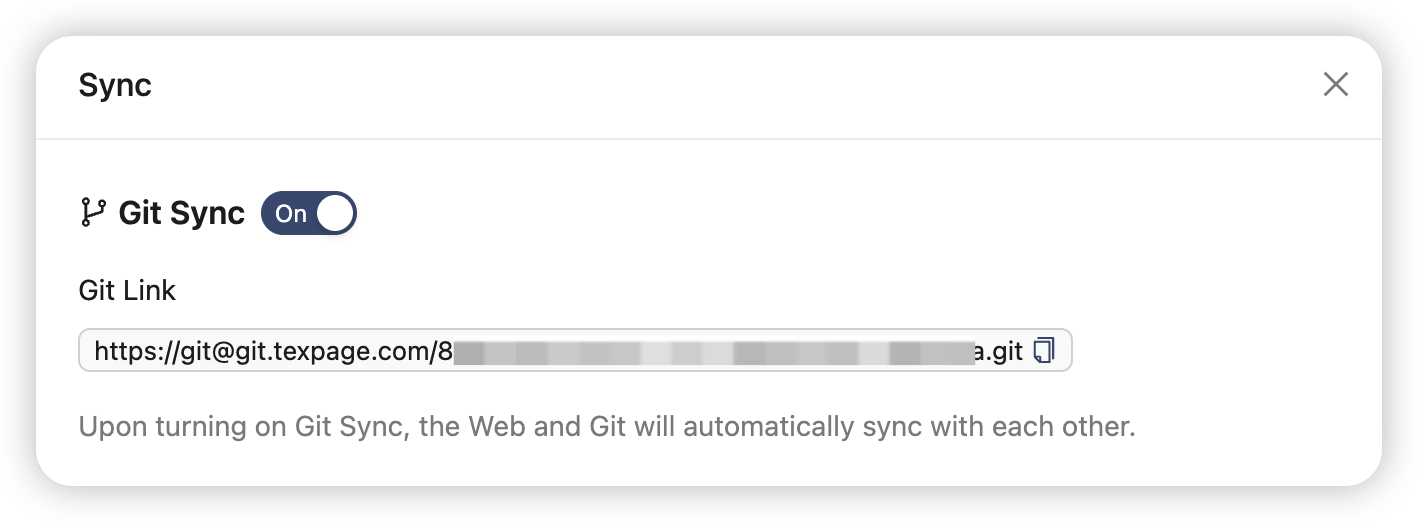
Open the project you want to synchronize, click the Sync button at the top of the project editor, and then select Git from the menu.
Enable Git Sync in the Git Sync dialog.
Use the Git Sync URL #
After Git Sync is enabled, TeXPage provides a Git Sync URL for the current project.
Copy this URL to perform standard Git operations such as Clone, Pull, and Push using a Git client.
When authentication is required, use the Git Sync token you created earlier as the password.